The User Interface
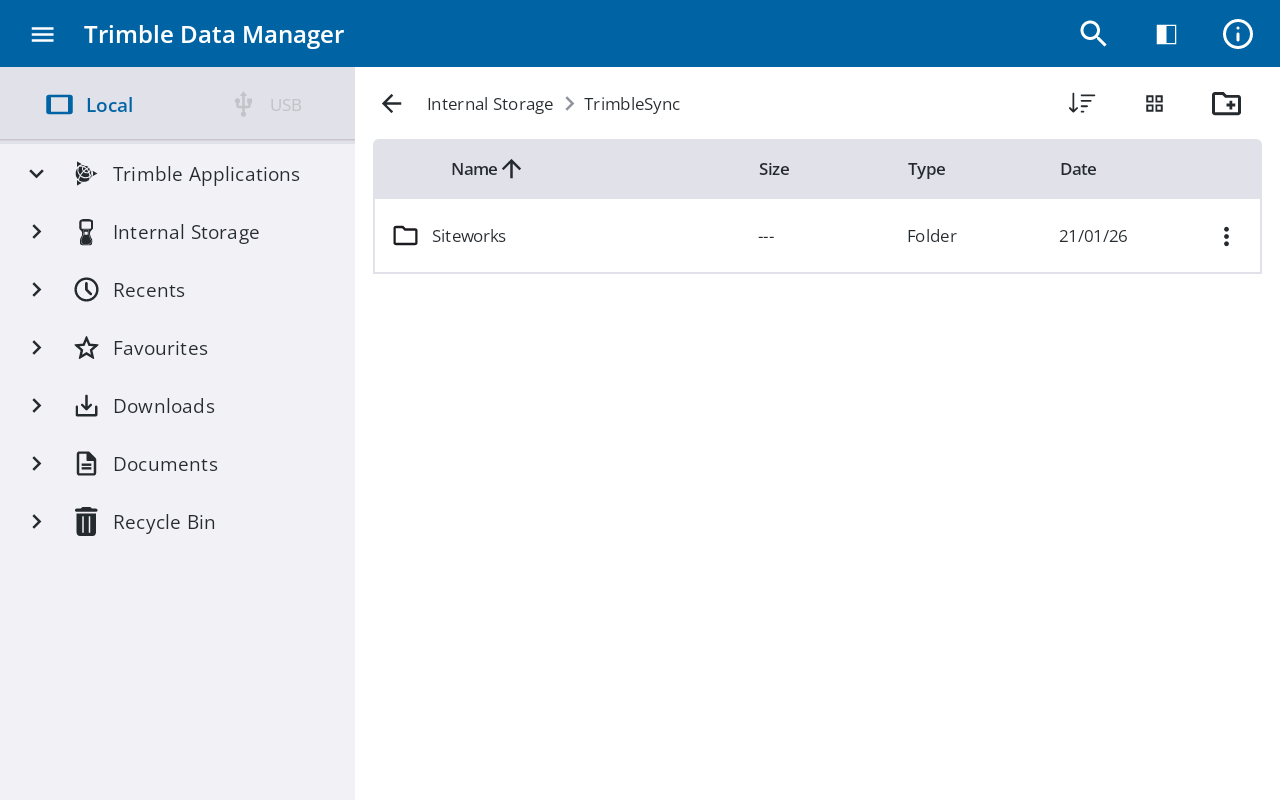
The Trimble Data Manager interface has three main sections.
-
The App bar. At the top of the screen, this bar contains the Trimble Data Manager title, as well as:
-
 Menu- toggles the visibility of the Sidebar. Tap it to collapse the Sidebar for a wider view of your files. When the Sidebar is collapsed, tap it to expand the Sidebar so you can navigate your folders.
 -
 Search- tap to open a search bar that allows you to find files and folders. The search is performed within the currently selected directory and all of its subfolders. See Using the Search feature.
 -
 Split screen - opens a second instance of the Trimble Data Manager, enabling you to have side-by-side instances of the app. See Using Split Screen.
 -
 Details - opens an information screen where you can view details about Trimble Data Manager, such as its current version number and relevant device information.
-
-
The Sidebar. Use the Sidebar on the left of the screen to navigate through your file directories and favorite locations. The Sidebar is organized into the following key sections for easy access to all your data:
-
Local or USB drive selection. At the top of the Sidebar, you can switch between Local storage and a USB drive. The USB option will appear disabled (greyed out) until a USB device is properly connected.
-
Trimble Applications Provides direct access to installed apps like Trimble Access and Trimble Siteworks. See Using Trimble Applications.
-
Recents Displays a list of your most recently accessed items, enabling you to quickly resume your work. See Accessing recently used files.
-
Favourites Provides one-tap access to all the files and folders you have marked as a favorite, acting as a custom shortcut list. See Using Favourites.
-
Recycle Bin Stores recently deleted files for 30 days before they are permanently removed. You can restore files to their original location from here. See Using the Recycle Bin.
-
Scroll vertically and horizontally if needed.
-
The tree view displays your directories. Tap the caret icon › next to a folder to expand it and show its subfolders. A folder without a caret icon contains no subfolders.
-
To view the contents of a directory / folder, tap it to display its contents in the main panel. The currently selected folder is always highlighted in blue for easy identification.
-
To maximize your workspace, tap
to collapse the Sidebar; you can still navigate by tapping the icons in the Sidebar. To expand the Sidebar, tap  .
.
To use the Sidebar:
-
-
The main panel. The main screen of the app where the contents of your selected folders are displayed and managed. See Using the main panel.
