Release Notes - February 2026
New & Improved
WorksManager Pro is a new subscription tier that brings these new features to WorksManager:
Trimble Connect Integration
-
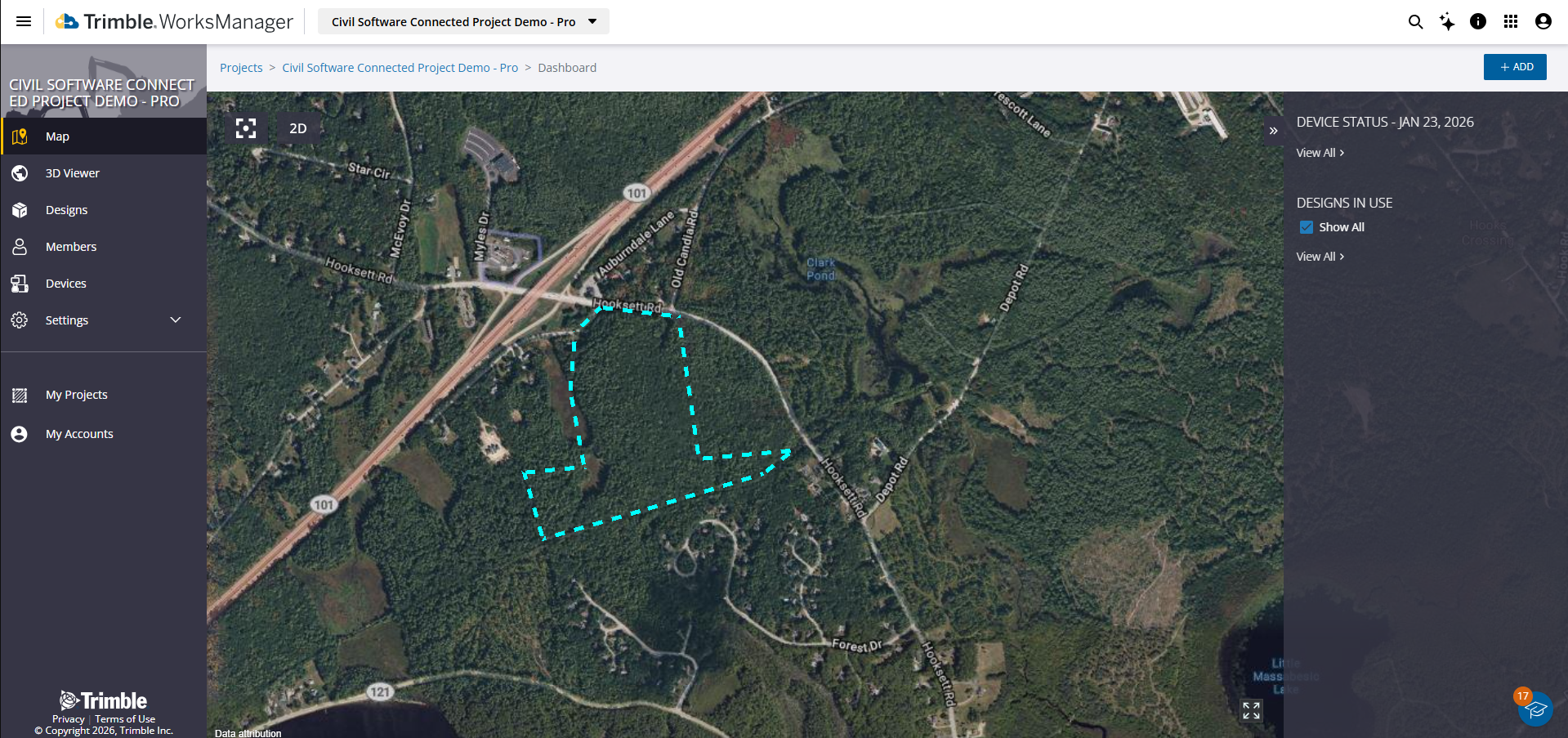
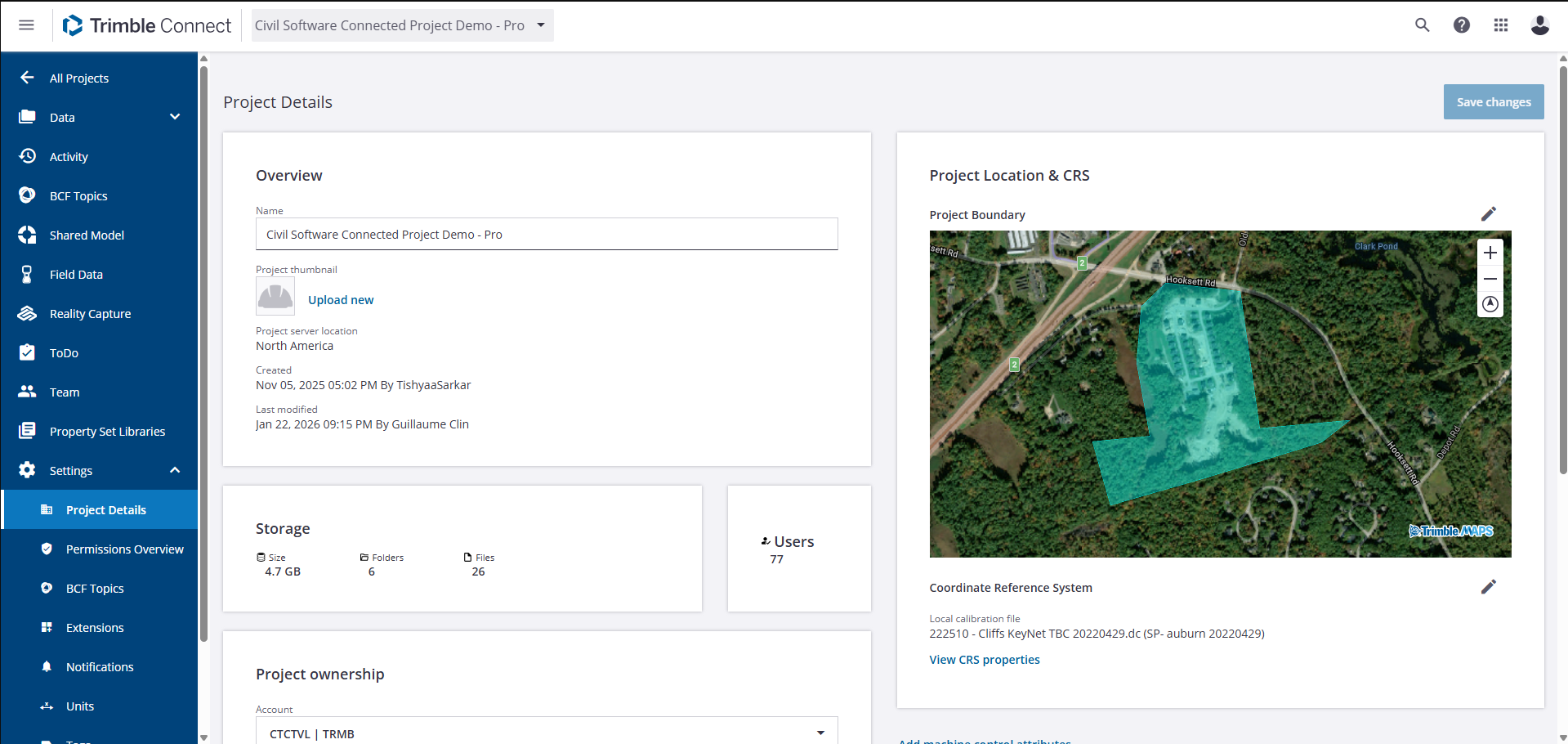
Use Connected Projects - If you already have Trimble Connect, WorksManager Pro benefits from Trimble Connect's role as a common data environment (CDE) for project information, enabling model viewing, version control, and integration with other software tools. Full integration with Connect allows for the display of solid models, like bridges and pipework. WorksManager Pro acts as a site management platform while integrating seamlessly with Trimble Connect for document management. See Create a Connected Project for details.
Mixed Fleet Support
-
Manage Mixed Fleets - Leading the market in adopting ISO standards, this feature allows WorksManager to share design data with other technology providers' cloud software. This enables contractors to manage mixed fleets more easily, provided the other technology partners also adopt these standards. See Use a Mixed Fleet of Devices
NOTE: You will be able to experience mixed fleet features once we have other technology providers' on board and compatible with WorksManager mixed fleet.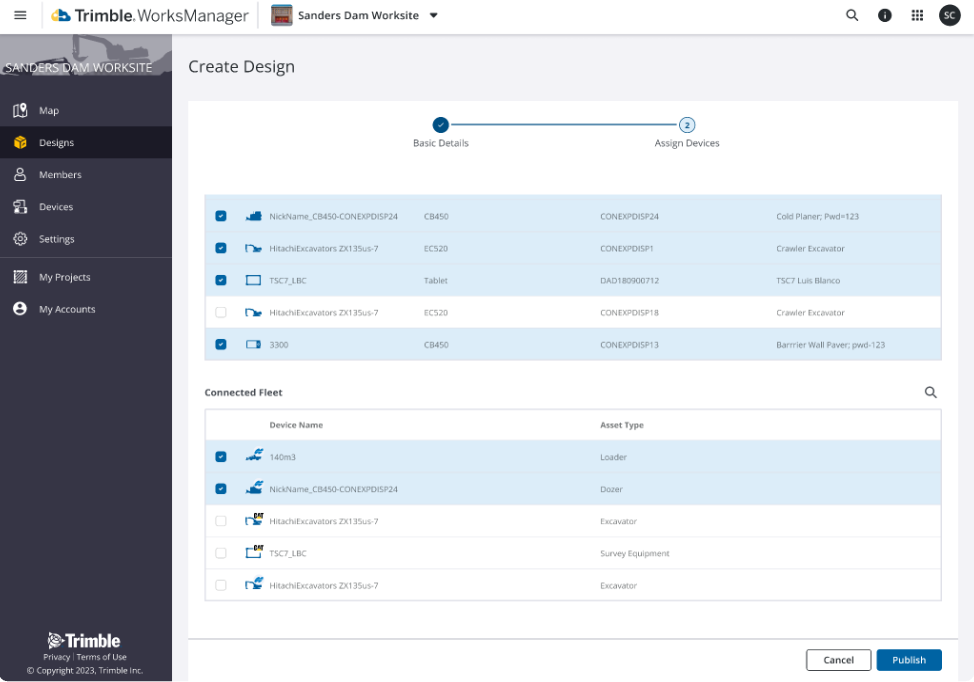
Advanced Site Visualization (3D Viewer)
Home Screen
-
View Map Data in 3D - The new 3D Viewer in WorksManager Pro has tools for visualizing, analyzing, updating, and managing your site data in 3D. These features enhance contextual understanding and real-time progress monitoring for your construction and civil infrastructure projects. Interact with all of your data in a single place. Gain a comprehensive view of your project by merging multi-source data into a single environment. You can visualize design data, machine productivity data from Earthworks, and surveyed surfaces alongside drone flight images. The system uses "temporal layering," allowing you to view the latest terrain based on the date and time of the data.
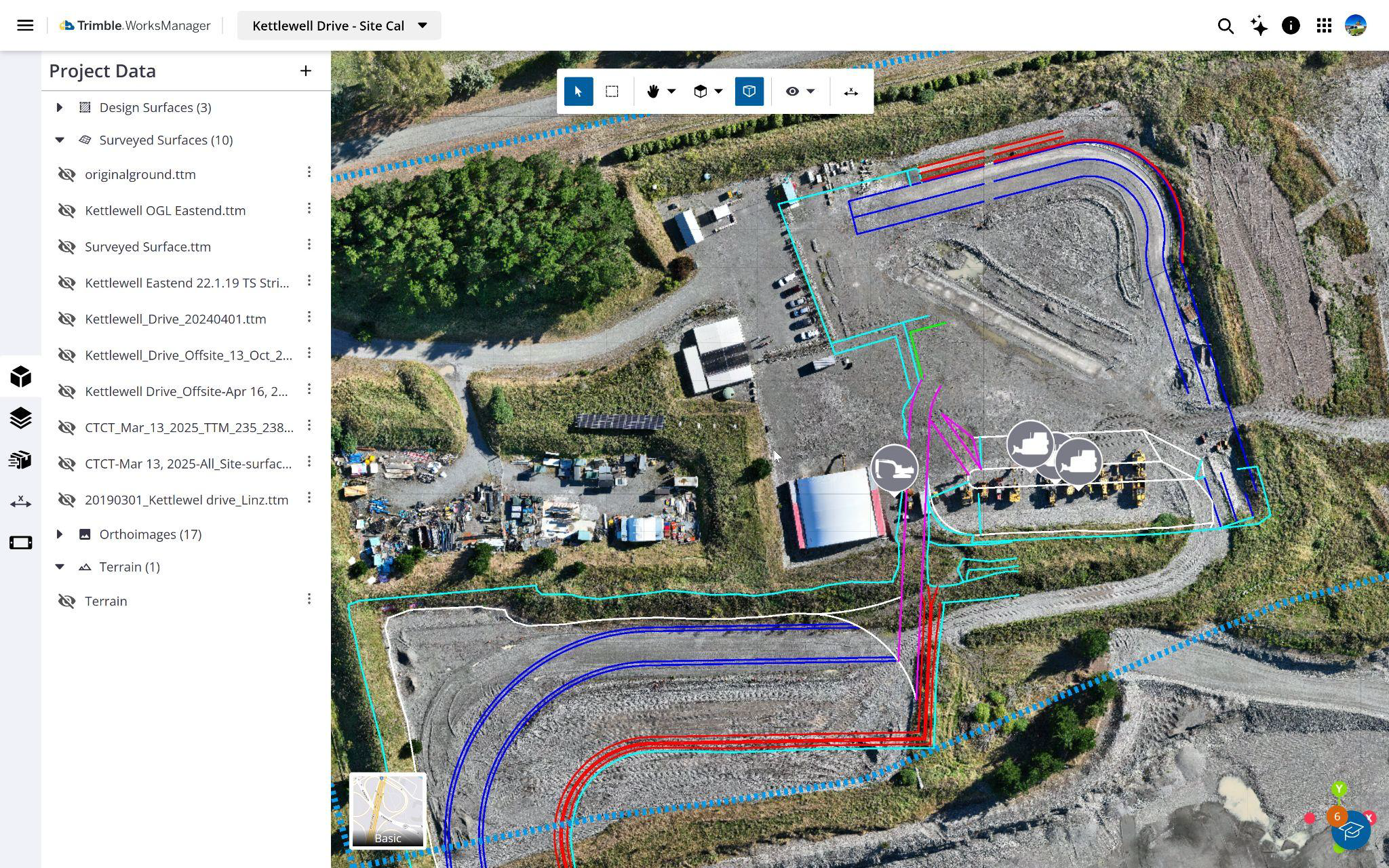
The 3D Viewer’s map view has functions that enable you to:
-
Toggle Background Map Styles - Display 2D geographic information (street, aerial, and topographic) from Trimble Maps, projected onto a horizontal plane beneath your data.
-
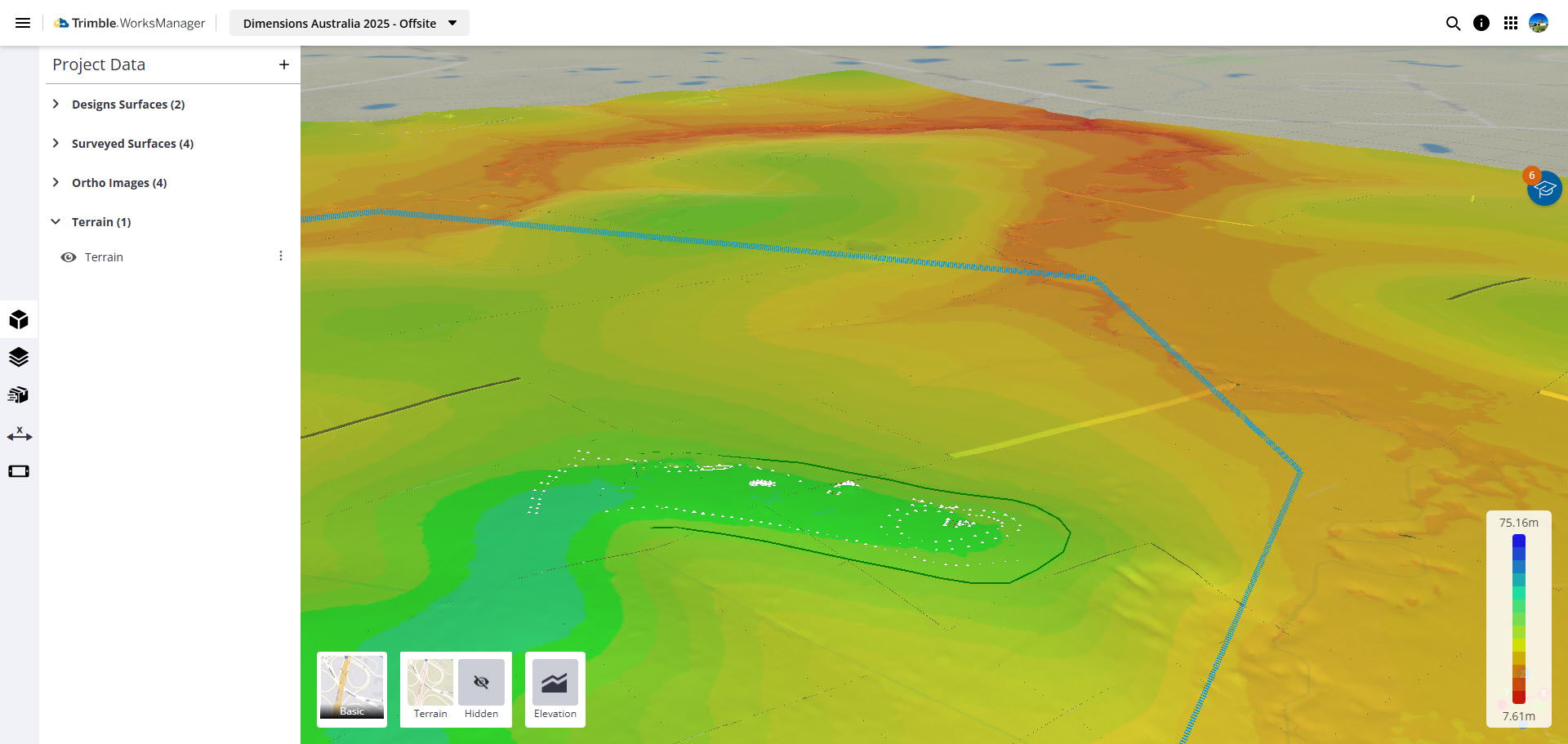
Show an Elevation Heat Map - While the 3D terrain shown in the Project Data pane aggregates your survey, drone, and machine data into a unified 3D model to create a ‘single-source-of-truth’ that enables you to quickly understand the topography, the model still requires analysis. A standard satellite image draped over the model gives you context, but it does not tell you about elevation. This feature instantly textures your 3D terrain with a clear, color-coded gradient that represents the site's elevation.
-
Navigate and Select in Your Model - Access these functions on the toolbar at the top of the view:
-
Single selection mode - Pick single objects directly.
-
Area selection mode - Pick one or more objects by ‘windowing’ or ‘crossing’.
-
Rotate / Pan - Click-and-drag to rotate around the 3D environment or to move the view in 2D.
-
Preset views - Choose from standard viewpoints, as well as an Axon (axonometric or projection view), which is a 3D representation on a 2D surface.
-
-
Interrogate Your Model Data - This functionality allows you to review properties of selected objects, including an object’s layer, color, line style (e.g., solid), line weight, and name, plus:
-
For points, it also shows the X, Y, and Z coordinates.
-
For lines, it can also show 3D distance, 2D horizontal distance, vertical distance, slope, grade, and index ID for each segment.
-
For rectangles, circles, and polylines, it also shows the perimeter length and area in square meters, the coordinates of each vertex, and index ID for each segment
-
For surfaces, it also shows opacity. type (e.g., topo).
-
Style - For points, shows the color and symbol, which is editable by clicking the colored dot.
-
-
Use Snap Modes for Precise Picking - When in measurement mode, the Snap toolbar appears at the bottom right of the view. Toggle one or more to enter snap modes.
For details, see 3D Viewer in the help.
Project Data Pane
-
Visualize and Explore Your Project Data - Use the Project Data pane to:
-
Aggregate data from diverse sources:
-
Import any supported file type to bring terrain data from various collection methods, along with design specifications, machine control data, project management information, and environmental monitoring data, together into a unified platform.
-
Import georeferenced orthoimages.
-
Bring data in from associated field devices.
-
Import files directly from Trimble Connect.
-
Import third-party drone data
-
-
Visualize and explore these categorized data types:
-
Design surfaces
-
Surveyed surfaces
-
Orthoimages, including drone imagery
-
Terrain (data aggregated from surfaces and orthoimages)
-
-
-
Compare multiple surfaces - Load and simultaneously display multiple surfaces from multiple dates; adjust their color and transparency for visual comparison of overlaps. Change the transparency and base height for any surface.
-
Filter data by date/time - Display terrain models as they appeared on a specified date and time ("as of date"), providing a snapshot of the site's cumulative state up to that point. Edit and filter terrain by date and time ranges.
-
Shade and Exaggerate Terrain - The 3D Viewer offers shading and terrain exaggeration to improve the visual prominence of 3D objects. You can also apply solid colors and adjust the transparency of individual surfaces. This feature provides greater control over the visualization of 3D models, addressing the common challenge of differentiating between multiple overlapping data surfaces.
For details, see Visualize and Explore your Project Data.
Layers Pane
-
Show/Hide and Filter Layers - Use the Layers pane that shows the layers in each design; you can show/hide, filter, and select by layer as needed.
-
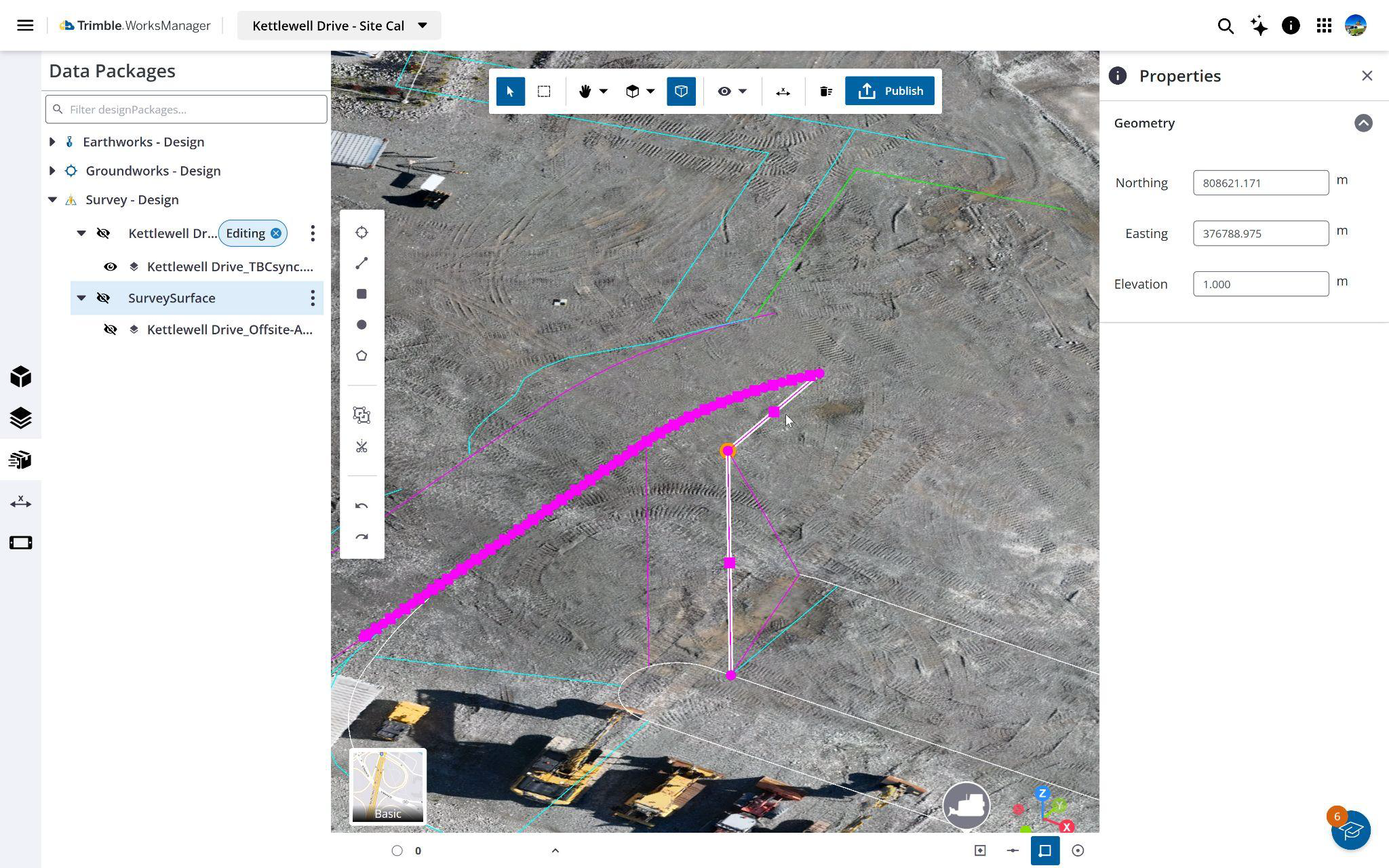
Preview and Edit Designs - Preview designs, edit styles (layers and colors), modify geometry, or even create simple designs from scratch for temporary work. Streamline your workflows with data preparation and site model capabilities, making it easier to deploy simplified data to field devices.
For details, see Show, Hide, and Filter Layers.
Data Packages Pane
-
Manage Design Data Packages - Use the Data Packages pane with categorized data sets to:
-
Review design data by category - Expand the Earthworks, Groundworks, and Survey sections to see which data sets you have for each type.
-
Toggle visibility - Show/hide any data package in the view and when dispatching to a machine.
-
See design details - Review details like who modified the design last and its version, surface details like file type, creation, modified, and imported dates, and the file owner’s email address. See the design’s publishing status and to which devices it was published.
-
Edit, download, archive, and delete - Add or modify data to create the next version of the design.
-
Validate design issues - See if there are conflicts, such as device incompatibilities, in the Info pane.
-
Filter design packages by date - Start with a simple filter with minimal options (e.g., date) and add more criteria as needed.
For details, see Manage Design Data Packages.
Drafting Tools
-
Create and Edit Drafting Objects - Create simple geometric objects, such as points, lines, polylines, rectangles, circles, and surfaces directly within an existing design.
For details, see Create and Edit Drafting Data.
Measurement Pane
-
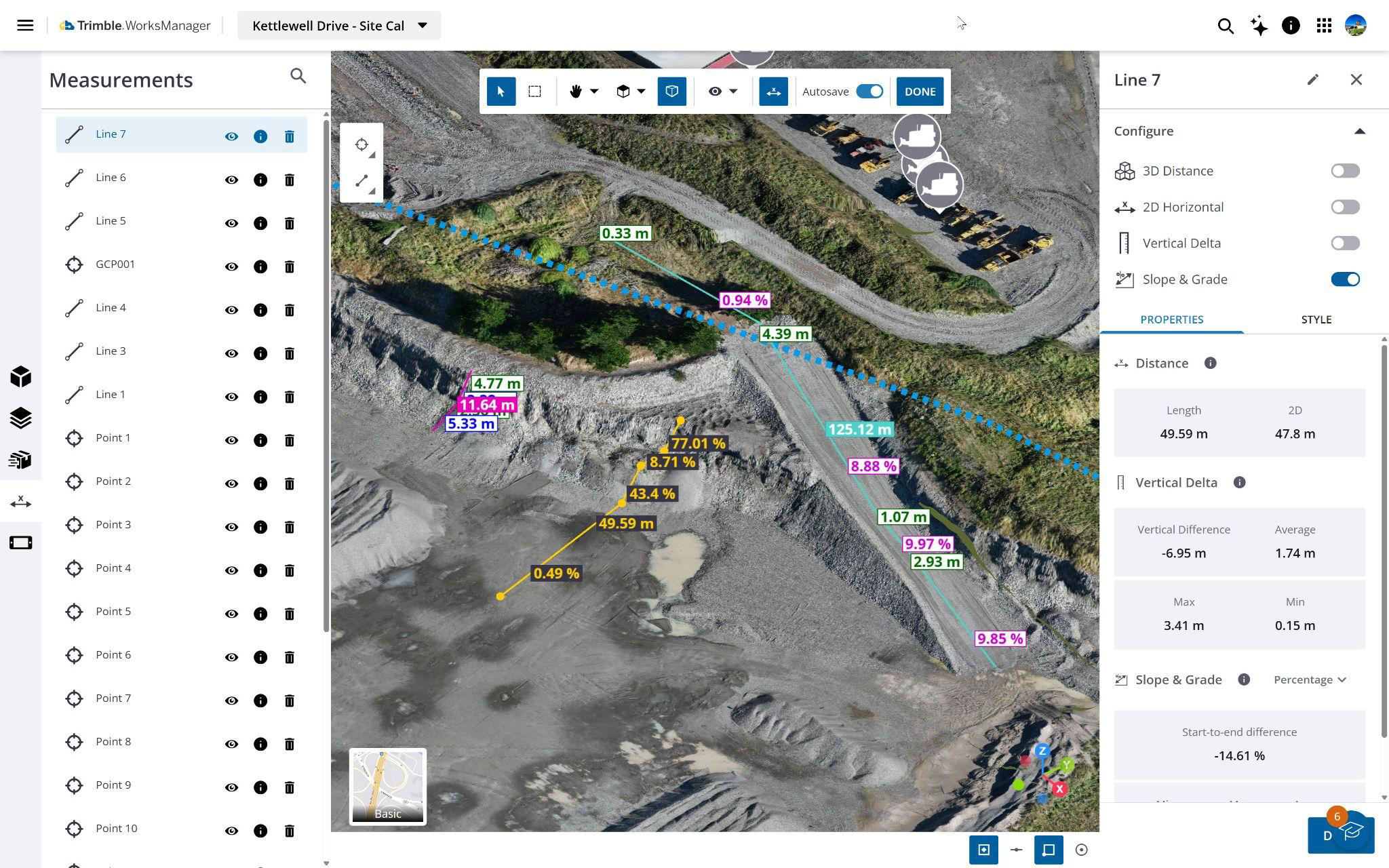
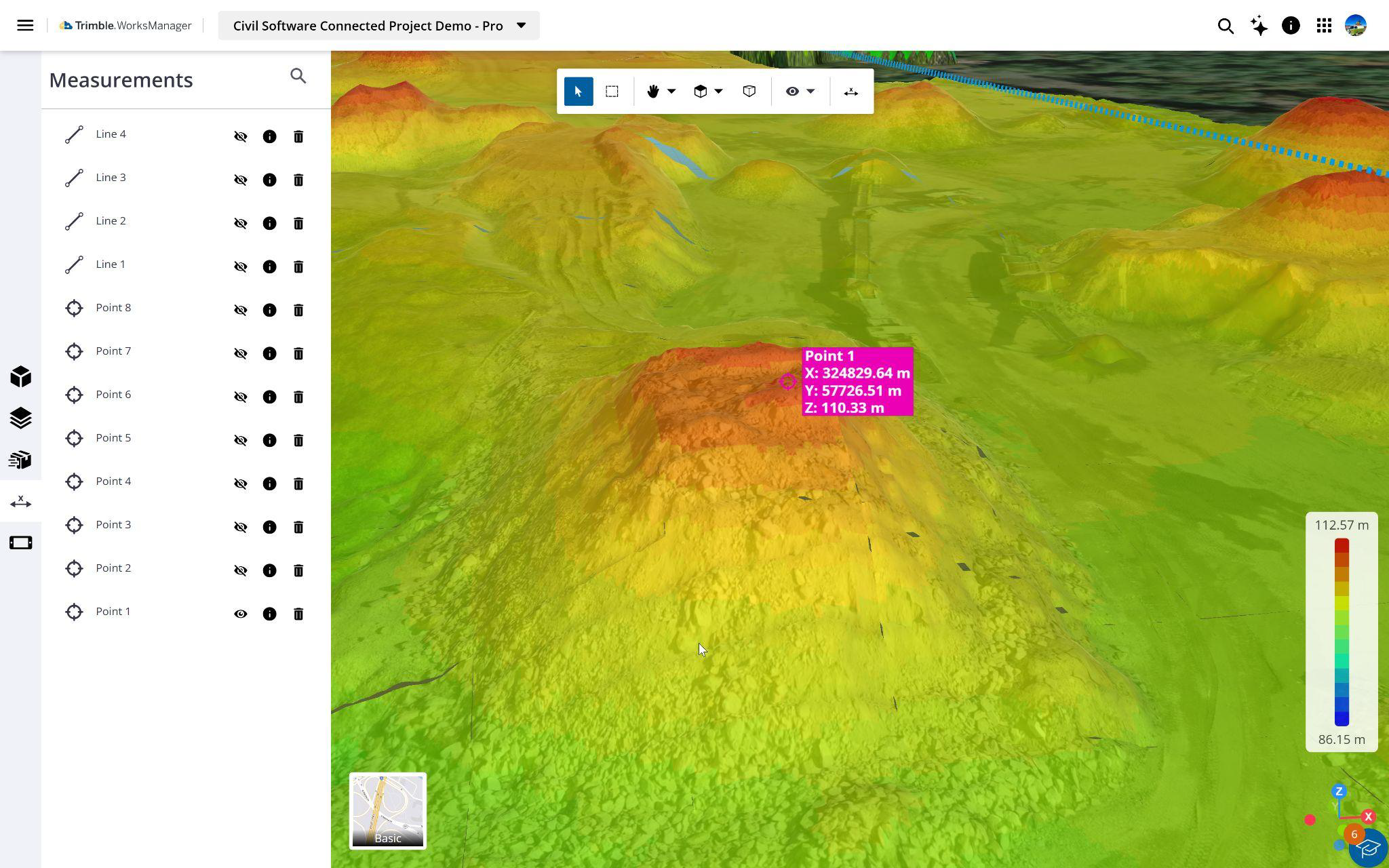
Use Measurement Tools - Perform quick quality checks directly within the application. You can verify material quantities, perform linear and point measurements, and run grade slope analyses to ensure safety and specification compliance.
-
Make and Save Measurements - Use the Measurements pane to:
-
Perform measurements - Perform basic coordinate, distance, and slopemeasurements on your site data.
-
Edit and manage points - Drag points in the 3D view to update their coordinates. Measurements can be saved and retrieved for future use.
-
Measure grade/slope along a path - Measure and visualize grade and slope along user-defined polylines in 3D.
-
Measure vertical distances - Determine the vertical elevation difference for each individual segment of a drawn multi-point polyline.
-
Save measurements - Each measurement appears in a list, allowing for future referencing and linking to other items.
-
For details, see Make and Save Measurements.
-
Device Status Pane
-
See the Locations and Status of Your Devices - Use the Device Status pane to see the map location and latest reported status of each of your devices assigned to this project. Click on any device to get its information. Review where your devices are in relation to the project boundary.
For details, see See your Device Locations and Status.
Other Benefits
-
Integrate, Synchronize, and Remotely Access Your Data - The 3D Viewer also incorporates these powerful, general functions:
-
Leverage Connected Workflows - The system is designed to streamline field-to-office workflows by allowing simple import and direct visualization of data collected by field devices (Trimble Access and Siteworks) into the WorksManager 3D environment.
-
Synchronize Your Data with WorksOS - The viewer is synchronized with WorksOS so the data is the same across applications, creating a more connected and efficient workflow. If you are a WorksOS user, any surface you previously imported into your WorksOS project will automatically be available in the 3D Viewer's surface list. When you import a new surface through the 3D Viewer, it will be automatically added to your corresponding WorksOS project. This ensures that your data stays synchronized without any extra steps.
-
Access WorksManager Functions on Mobile Devices - The 3D Viewer and all of its functions are accessible directly from mobile phones and tablets, allowing you to navigate projects, view designs, toggle layers, and make quick measurements on-site without a PC.
3D Viewer features aim to provide a robust and intuitive 3D visualization and management platform, moving you beyond the limits of 2D and reducing your reliance on disconnected desktop software.
Use a WorksManager Pro Trial Version
You can now experience WorksManager Pro features before you decide on purchasing or upgrading your account. See Use a WorksManager Pro Trial Version for details.
